Project Files
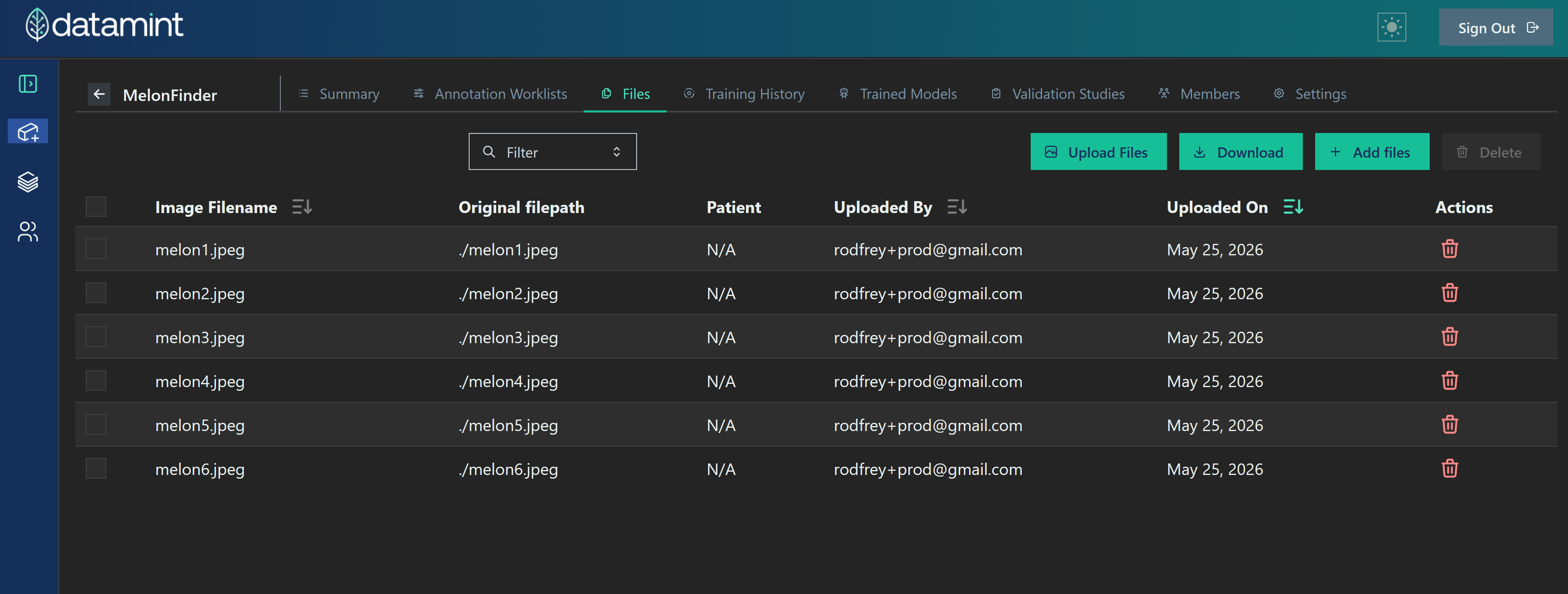
The Files tab contains all files associated with the project.
Filter
The Filter button with the magnifying glass opens a window to filter the files which have been uploaded to the project. Information on using filters can be found at Filters
Upload Files
The Upload Files button opens a window which allows you to add files to the project from your computer. Once files are added to the project, they can then be added to annotation worklists and annotated. They will also automatically be added to your Data Library, allowing them to be included in other projects.
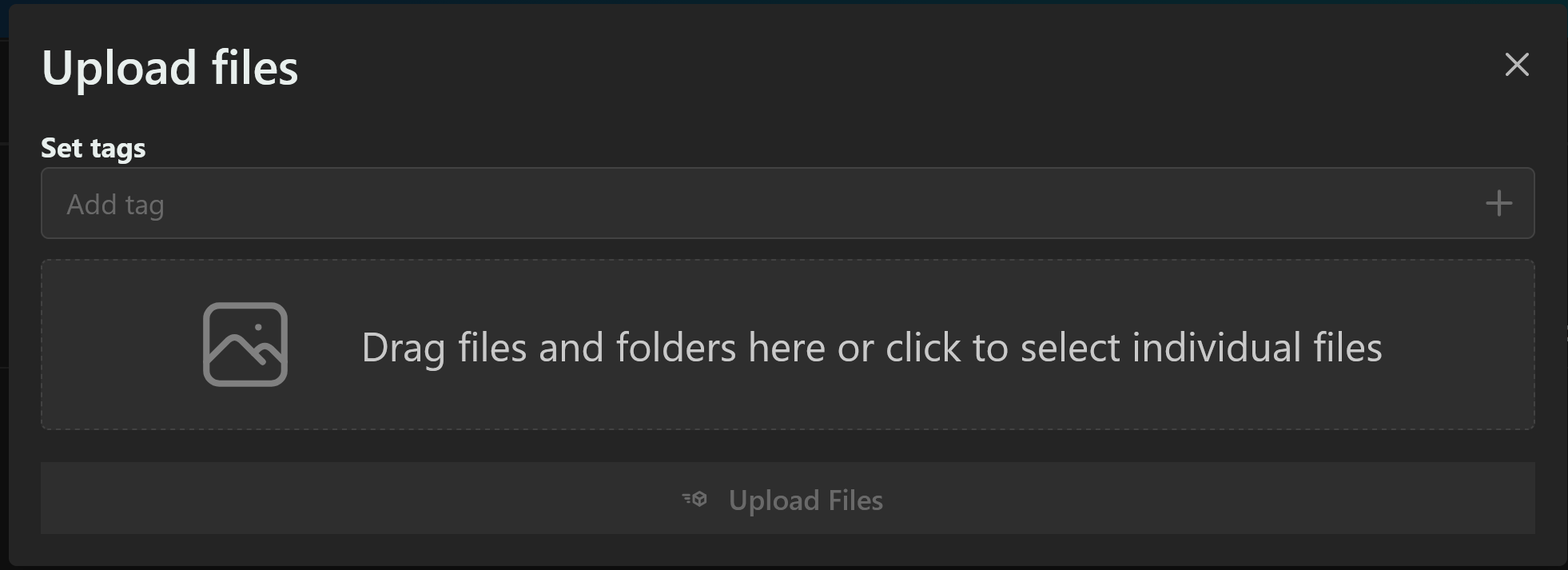
You can upload DICOM, NIfTI, jpg, png, mp4, and avi files.
Tags
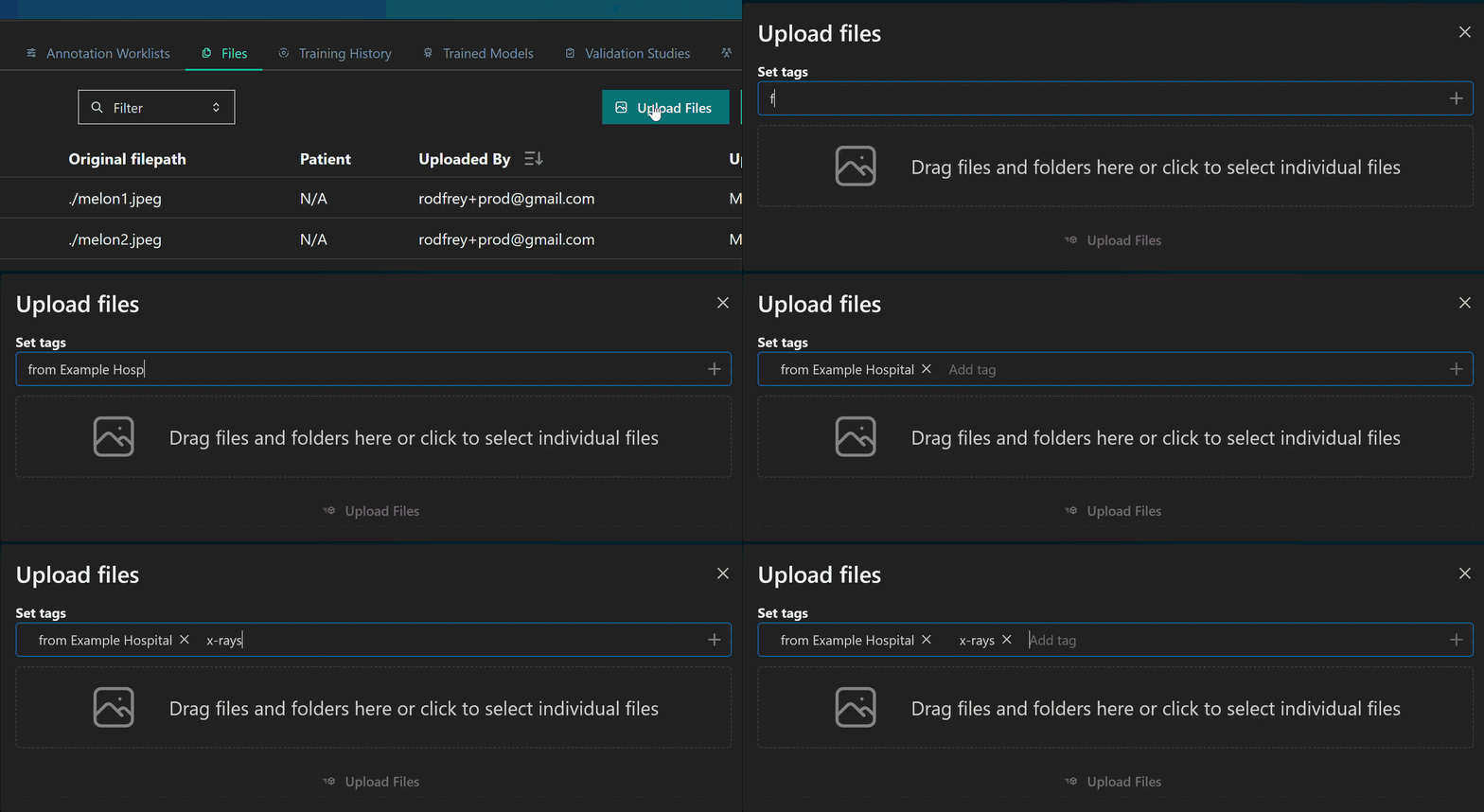
Tags are words or phrases that will be applied to the files you upload, when you upload them. They can be used for organizing your files in any way which makes sense to you. Note that tags are not the same as classifications, and have nothing to do with model training. They are only for organizing the files you upload.
Type in any text and press Enter to make it a tag. Tags can then be searched using filters.
Download
The Download button allows you to download annotations attached to files. For more information, see Downloading Annotation Data.
Add Files
The Add Files button allows you to add files to the project from the Data Library. For more information, see Published Files.